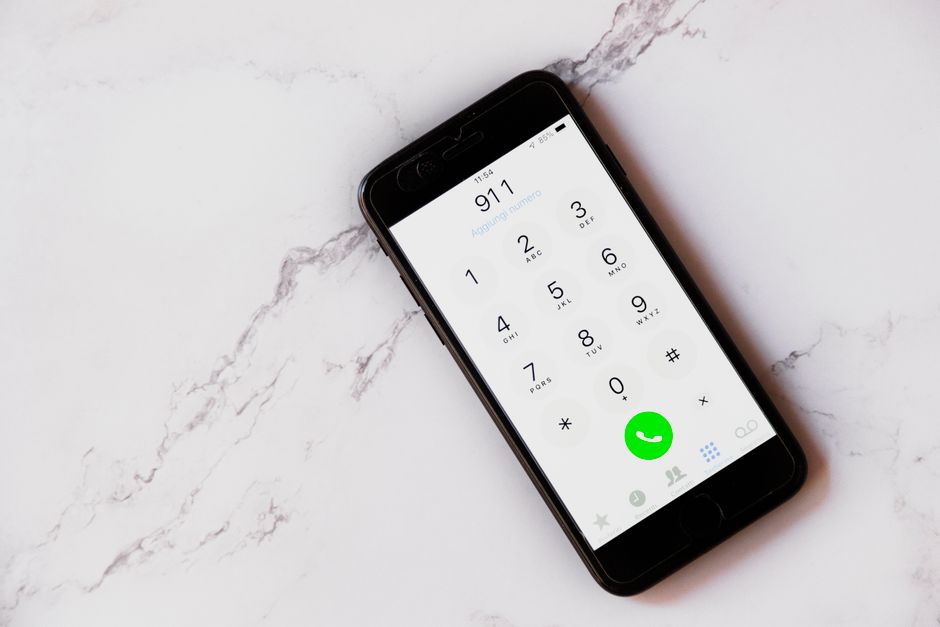
👉 At a glance: The iPhone’s Emergency SOS feature is a crucial tool allowing users to quickly contact emergency services and share location information with emergency contacts.
What is the iPhone Emergency SOS Feature?
The iPhone Emergency SOS feature is designed to quickly connect users with emergency services. By pressing specific buttons, your phone can alert local emergency responders and notify your emergency contacts with your location.
How to Set Up the Emergency SOS Feature
To set up Emergency SOS on your iPhone, go to Settings > Emergency SOS. Here, you can enable Auto Call and select your emergency contacts.
It’s important to add emergency contacts who will receive your location and updates should you activate the SOS function.
Does the Emergency SOS Feature Really Help?
In numerous real-life emergencies, the Emergency SOS feature has proven to be invaluable. It has provided critical assistance during accidents, health crises, and situations where immediate response is crucial.
The ability to quickly notify emergency services and loved ones can be a lifesaver.
Information Shared During an SOS Call
When you initiate an SOS call, your location is automatically shared with your emergency contacts. Moreover, medical ID information can be accessed by first responders without unlocking your device.
Tips for Maximizing the Use of Emergency SOS
Ensure your emergency contacts are up to date and familiarize yourself with the button sequence to activate the feature. Practice using the feature to ensure you can do it under stress.
Common Misunderstandings about Emergency SOS
Some users worry about accidentally triggering Emergency SOS. However, the feature is designed to minimize false alarms with a countdown and sound alert before calling.
⚠️ Caution: Ensure your emergency contacts are informed about their role and the information they may receive.
Key Takeaways
- Set up Emergency SOS in your iPhone settings for quick access to help.
- Update your emergency contacts regularly to share accurate location details.
- Practice using the feature to ensure preparedness in emergencies.
- Your Medical ID can provide crucial information to first responders.
This article is general information and does not replace professional diagnosis or treatment. Consult a qualified provider if symptoms persist.
Leave a Reply